Home Network Security
Home Printer Wi-Fi Privacy Reset Before Selling or Donating
A privacy-safe 2026 checklist for clearing printer Wi-Fi settings, stored jobs, address books, cloud links, and app access before resale or donation.
- Use source-backed steps before changing security settings.
- Prioritize MFA, updates, backups, segmentation, and phishing-resistant habits.
- Save only the guides you need; no account is required.
A home printer can remember more than people expect: Wi-Fi network names, cloud-print links, scan destinations, fax or email address books, stored jobs, and app permissions. Before selling, donating, recycling, or handing it to a relative, treat it like a small networked computer rather than a simple appliance. This June 2026 checklist is conservative because model menus differ.
Reset map
| Area | What to clear | Verification |
|---|---|---|
| Wi-Fi and network | SSID, saved password, static IP, remote admin | Printer no longer joins the old router |
| Cloud and apps | Vendor account, mobile app, subscription ink, scan-to-cloud | Account dashboard no longer lists the device |
| Address books | Email, fax, SMB, FTP, one-touch destinations | No contacts appear after reboot |
| Job storage | Reprint queues, secure print jobs, scan cache | Stored job list is empty |
| Removable media | SD cards, USB drives, memory cards | Remove before transfer |
Start with the model manual
Search the official support page for the exact model. Generic instructions are useful only after you know the menu names. Some devices separate network reset from all-settings reset. Others keep cloud account links outside the printer menu in a phone app or web dashboard. If the printer belonged to an employer, stop and follow the asset-return policy.
Clear network identity
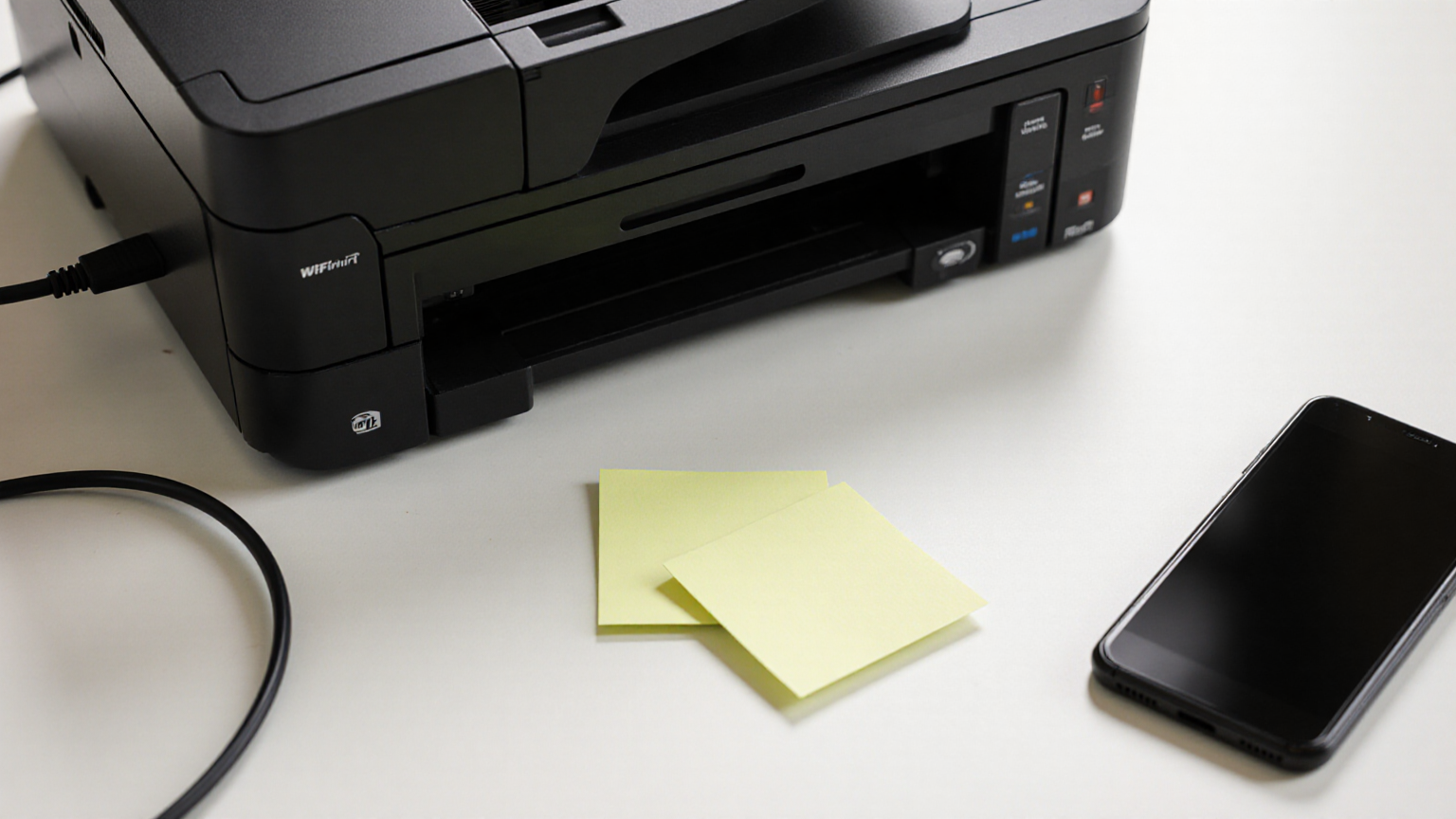
Disconnect the printer from Wi-Fi, remove saved network profiles, and reboot it near the old router. If the router still shows the printer connected, the reset did not work. For Ethernet printers, clear static IP settings and remove any port-forwarding or router reservations that were created for printing.
Remove accounts and scan destinations
Many households set up scan-to-email, scan-to-folder, cloud storage, or subscription ink. Those links can expose names, folder paths, or account tokens. Open the vendor app and web account, remove the printer, revoke device access, and cancel or transfer any paid supply plan according to the vendor instructions.
Avoid risky proof photos
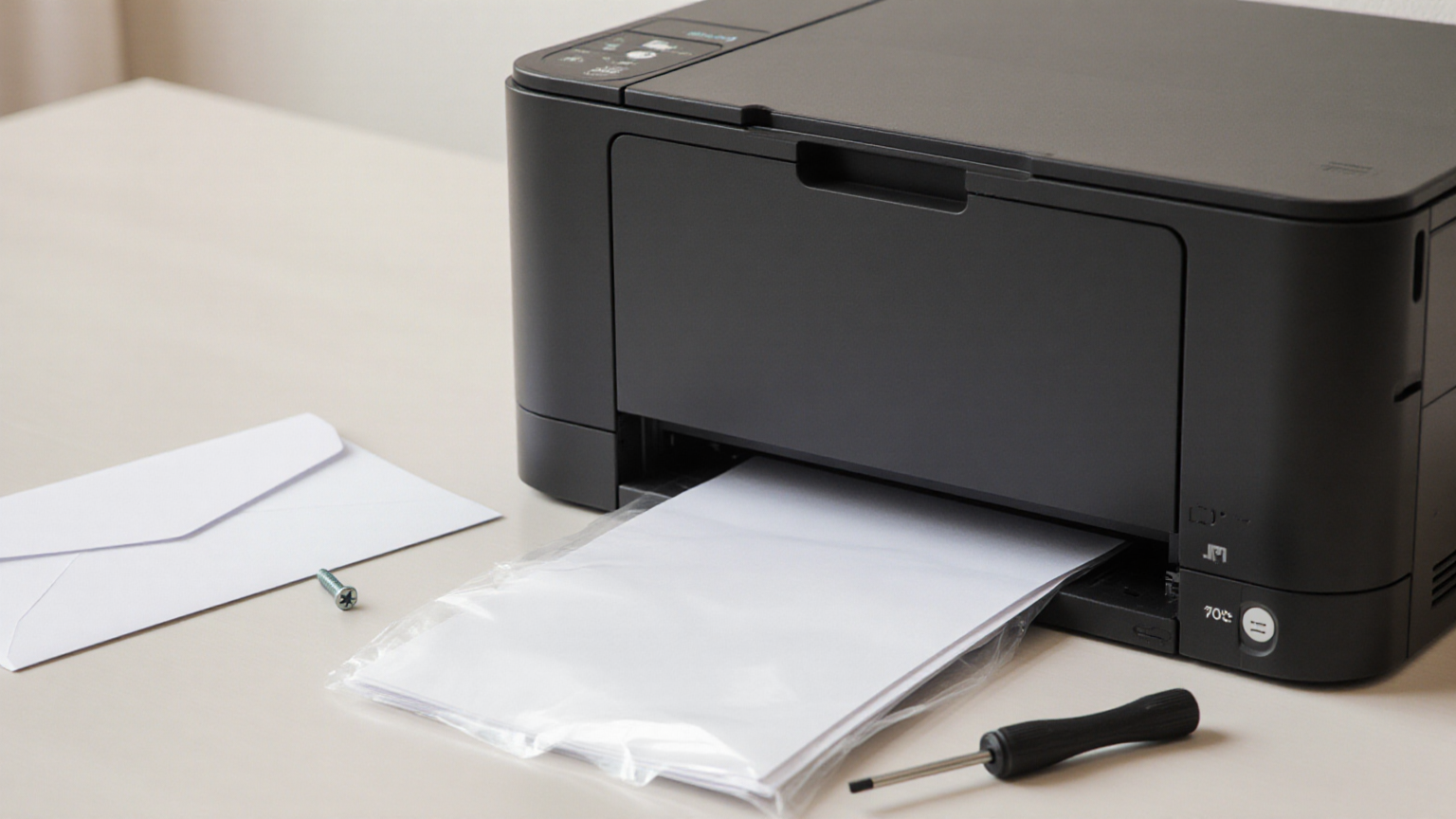
When listing the printer for sale, do not publish serial-number closeups, QR codes, router labels, address books, or screenshots of account pages. Show the exterior, tray, cables, and blank test page instead. If a buyer asks for a configuration page, redact network names and identifiers.
Final handoff checklist
Print or display a blank test page, include power cable only, remove memory cards, reset admin passwords, and write down only public setup information such as model number and official support page. Do not give the buyer your app login, old Wi-Fi password, or cloud account.
Reader trust and scope note
The guidance is privacy-first, avoids unsafe direct-download language, and points readers toward official manufacturer support instead of mirror sites or shortcut reset myths.
Model-specific reset sequence
Run resets in layers. First remove the printer from vendor apps and cloud dashboards. Second clear scan destinations, address books, fax memory, stored jobs, and custom workflows. Third reset network settings. Fourth run the full device reset if the manufacturer recommends it. Finally reboot and confirm the printer asks for a fresh setup instead of joining the old network.
Address book and scan-folder risks
A scan-to-email entry may expose family names, work addresses, or school contacts. A scan-to-folder path may reveal a computer name, NAS share, or business folder structure. Even if the buyer cannot open the folder, those names are unnecessary personal information. Delete them before transfer and check the menu again after reboot.
Cloud account cleanup
Many printers are paired to a mobile app for ink monitoring, cloud print, warranty, or remote scan. Remove the device from the account dashboard and revoke app permissions on phones or tablets that used it. If the service has subscription ink, confirm billing status separately. Do not give the next owner your account to make setup easier.
Safer resale photos
Use photos that show condition without leaking identifiers: exterior, tray, power cable, blank test print, and accessories. Avoid QR setup stickers, serial-number closeups, configuration pages, router labels, and account screens. If a marketplace buyer wants proof of function, use a blank page and a public model number instead of a network report.
Recycling and employer devices
If the printer came from an employer, school, medical office, or client environment, do not sell it casually. Ask the asset owner for return or disposal instructions. Business devices can contain job storage, address books, fax logs, or compliance obligations that household reset steps do not cover.
Detailed operating notes
Use this guide as a worksheet, not as a one-time article to skim. The highest-value step is to slow the decision down enough to separate facts, assumptions, and next actions. Facts are items you can verify: a date, an account status, a symptom, a device menu, a confirmation number, or a photo. Assumptions are stories you may believe but have not checked yet. Next actions are small enough that another person in the household or team could do them without interpretation.
A good record has three columns. The first column is the observation. The second column is the source of that observation. The third column is the next action and owner. This structure prevents a common failure mode: collecting a pile of screenshots, links, and notes that no one can act on. If the issue changes, add a new dated entry rather than editing the old one. That makes the timeline easier to explain to a professional, support team, clinic, agency, manager, or family member later.
Privacy matters even when the topic feels ordinary. Do not paste passwords, full account numbers, payment card data, Social Security numbers, private medical details, client names, or children’s personal information into a shared note. If you must share evidence, redact identifiers and use the official upload or communication channel. The article’s checklists intentionally ask for only the minimum information needed to make the next decision.
Recheck official pages when the stakes are high. Agencies, platforms, vendors, utilities, health organizations, and employers update pages, eligibility rules, menus, and support paths. A saved article can help you prepare, but the current official page and a qualified professional override a static checklist. When the official page is blocked by a script, bot filter, login wall, or regional redirect, use that as a signal to verify through a second official channel rather than guessing.
For households or teams, make the plan visible before the stressful moment. Put the checklist where the right person can find it, assign one backup contact, and decide what would trigger escalation. A plan that depends on one tired person remembering every detail at midnight is fragile. A plan with a short script, a dated log, and an agreed escalation threshold is much more resilient.
Review the outcome after the event. What information was missing? Which source was hard to find? Which payment, appointment, device, or communication step took longer than expected? Turn those answers into one small improvement: a saved phone number, a corrected account login, a fresh backup cable, a labeled folder, a better pet record, or a monthly reminder. That small repair is the difference between content that merely informs and a system that reduces risk next time.
Quality-control pass before you rely on it
Before calling the plan finished, read it once from the point of view of a person who is tired, distracted, and under time pressure. Remove any step that requires guessing. Add the exact official place to check, the safest contact path, and the point where waiting becomes risky. If two people could interpret a step differently, rewrite it as a yes-or-no check or a short script.
Buyer handoff boundary
Give the next owner the public model name, a power cable, and the official support page. Do not provide your former Wi-Fi name, app account, ink subscription login, router password, cloud storage path, or admin password. If the device still needs a setup cartridge or maintenance part, say that plainly in the listing instead of leaving personal settings in place to prove function.
Final verification step
After the reset, power the printer off, wait a minute, power it back on, and confirm it behaves like an unconfigured device. If it silently reconnects, repeats an old scan destination, or still appears in a cloud account, repeat the model-specific cleanup before transfer.
Visual walk-through
Reader checklist
- Save official-source links before you need them.
- Keep private account numbers, medical details, passwords, and payment data out of shared notes.
- Re-check the latest official guidance if a rule, platform screen, benefit, or health condition changes after June 2026.
- Escalate to the qualified professional for this topic when the situation involves safety, money loss, legal risk, medical care, or account access.